Automate Tag Assignments based on Host Facts
-
How to automate tag assignments based on host facts
This guide explains how you can automatically assign VulnDetect tags based on information collected directly from hosts - such as hardware details, OS version, Intune enrollment status, and other system facts.
The approach uses a PowerShell script executed through a Custom Software deployment. The script gathers host information and outputs structured data that our backend service reads and converts into tags.
Overview
- A PowerShell script runs on hosts using Custom Software deployment.
- The script collects system facts and outputs JSON.
- A background job processes that output and creates or assigns tags automatically.
Step 1 - Create a Custom Software configuration
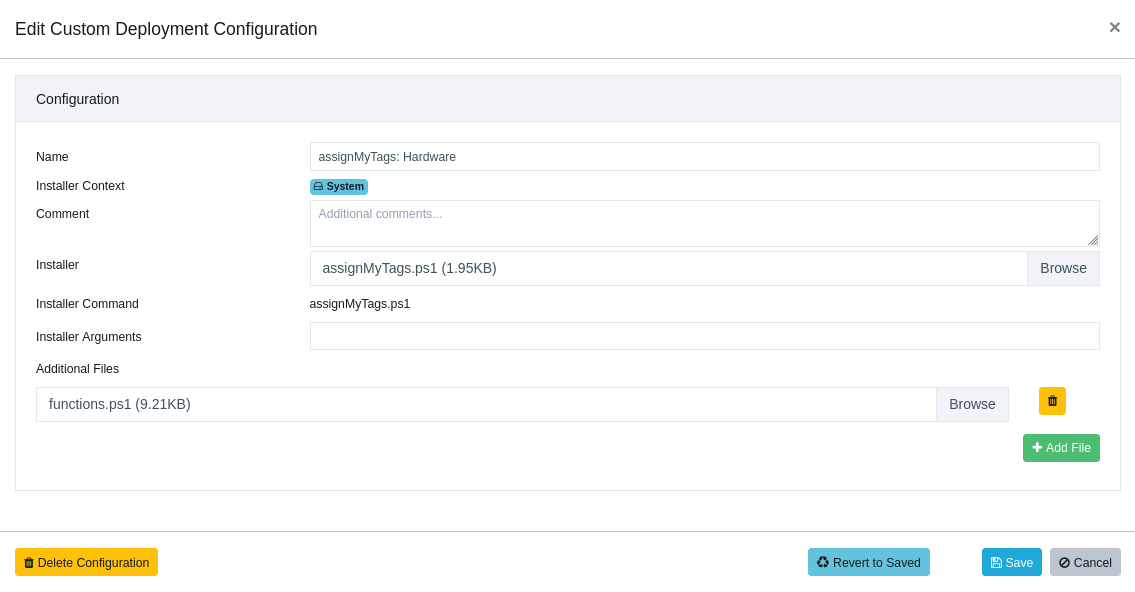
Create a Custom Software configuration containing:
- The assignMyTags.ps1 script
- The functions.ps1 helper script
(these scripts are provided as examples, to show how the output should look like, please adjust to your needs).
The configuration must be named with the following prefix:
assignMyTags: <something>Example:
assignMyTags: hardwareFactsThe prefix is required because the backend automation looks for deployments using this naming pattern.
Custom Deployment Configuration:
Step 2 - Create a Deployment Job
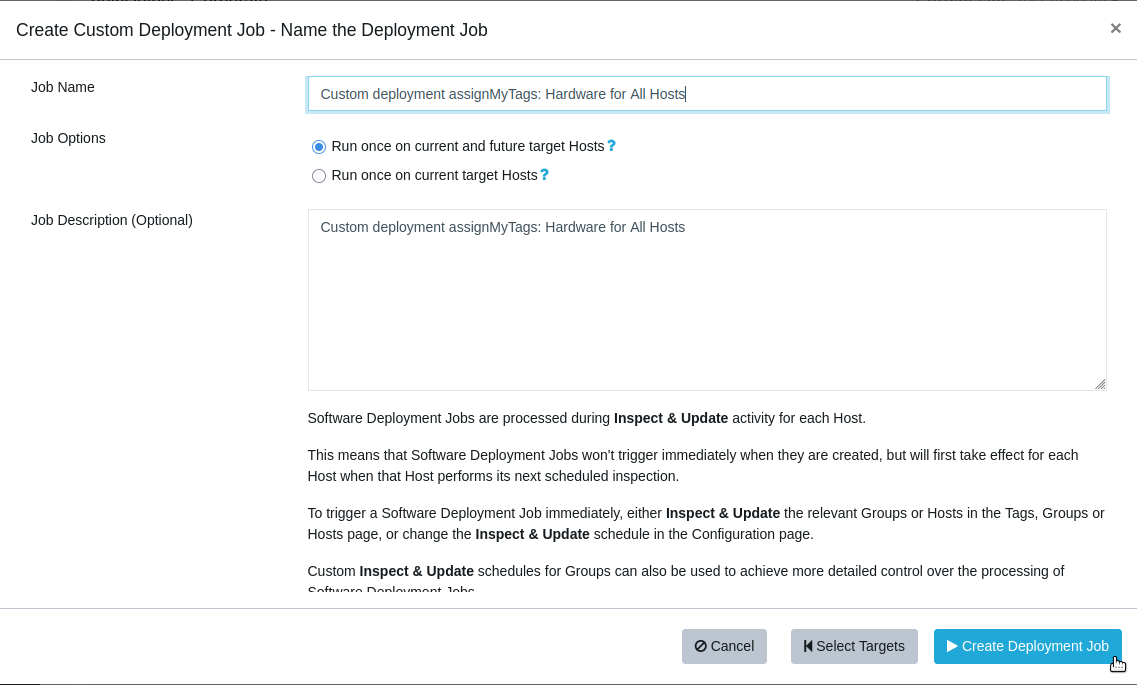
Create a deployment job using the Custom Software configuration.
The deployment job must be named with this prefix:
Custom deployment assignMyTags: <something>Example:
Custom deployment assignMyTags: hardwareFactsThe backend job relies on this prefix to locate the deployment results.
Custom Deployment Job:
Step 3 - Contact Support
Once your deployment job is created and executed on hosts, contact Support.
We will enable a background cron job that:
- retrieves the script output
- creates any missing tags
- assigns the tags to the relevant hosts
The background job can run up to once per hour.
Tag naming recommendations
You are free to choose your own tag names, but we recommend using a clear prefix so automated tags are easy to identify.
Example:
auto.cpu-model: Intel Core i7-1260P
auto.tpm-version: 2.0
auto.laptop-model: ThinkPad T14 Gen 3
Only certain characters are allowed in tag names. Any unusual characters will automatically be removed by the background script.
Versioning tags
Inside the PowerShell script you will find two settings:
$amtName
$amtVersion
Example:
$amtName = "hardwareTags"
$amtVersion = "2"
These values control tag generations.
When the version number is incremented, the backend automation will automatically remove older tags with the same name.
This makes testing easier and prevents duplicate or outdated tags from accumulating.
Example workflow:
hardwareTags v1
-> test
-> change script
-> hardwareTags v2
-> old v1 tags automatically removed
The version must be an integer.
Updating dynamic tags
If your tags represent dynamic values (for example Intune enrollment status or disk encryption state), we can also help configure periodic redeployment of the Custom Software job.
This allows the host facts to be refreshed regularly so tags remain accurate over time.
Contact Support if you would like to enable this.
Summary
This mechanism allows you to:
- Automatically tag hosts based on real system data
- Maintain consistent tagging across your environment
- Easily iterate and test tag definitions using versioning
- Keep tags updated through scheduled deployments
If you have questions or want help setting this up, feel free to reach out to Support.
Hello! It looks like you're interested in this conversation, but you don't have an account yet.
Getting fed up of having to scroll through the same posts each visit? When you register for an account, you'll always come back to exactly where you were before, and choose to be notified of new replies (either via email, or push notification). You'll also be able to save bookmarks and upvote posts to show your appreciation to other community members.
With your input, this post could be even better 💗
Register Login